AI routing
The AI assistant can do two dispatch jobs for you:
- Optimize with AI puts the stops of a route you already built into a better order.
- Ask AI suggests which route should take an unassigned order. Coming soon.
Both open the AI assistant panel, so you can follow what happens and ask questions in the same chat. You need the Assign/Unassign Orders permission. For the other ways to put a route in order, see Optimize a route.
How stops are grouped by day
A route's stops are always ordered one day at a time, and each pickup stays ahead of its delivery. Stops for a later day are never mixed in with an earlier day's work. Each day before today is ordered on its own, earliest first, ahead of today's stops, and stops with no date come after the dated ones.
- Today's stops and any late stops (open stops dated before today) will form one group, because all of them are expected to be done today. Stops for later days stay in their own groups, after today's, in date order.
- "Today" will be your own day, in your time zone. The groups move forward on their own: a stop planned for tomorrow joins today's group the next day, and is ordered together with the rest of that day's work.
- On the board, later-day stops will appear after today's stops under a later day divider. See The "later day" divider.
Optimize a route with AI
Step 1: Open Reroute
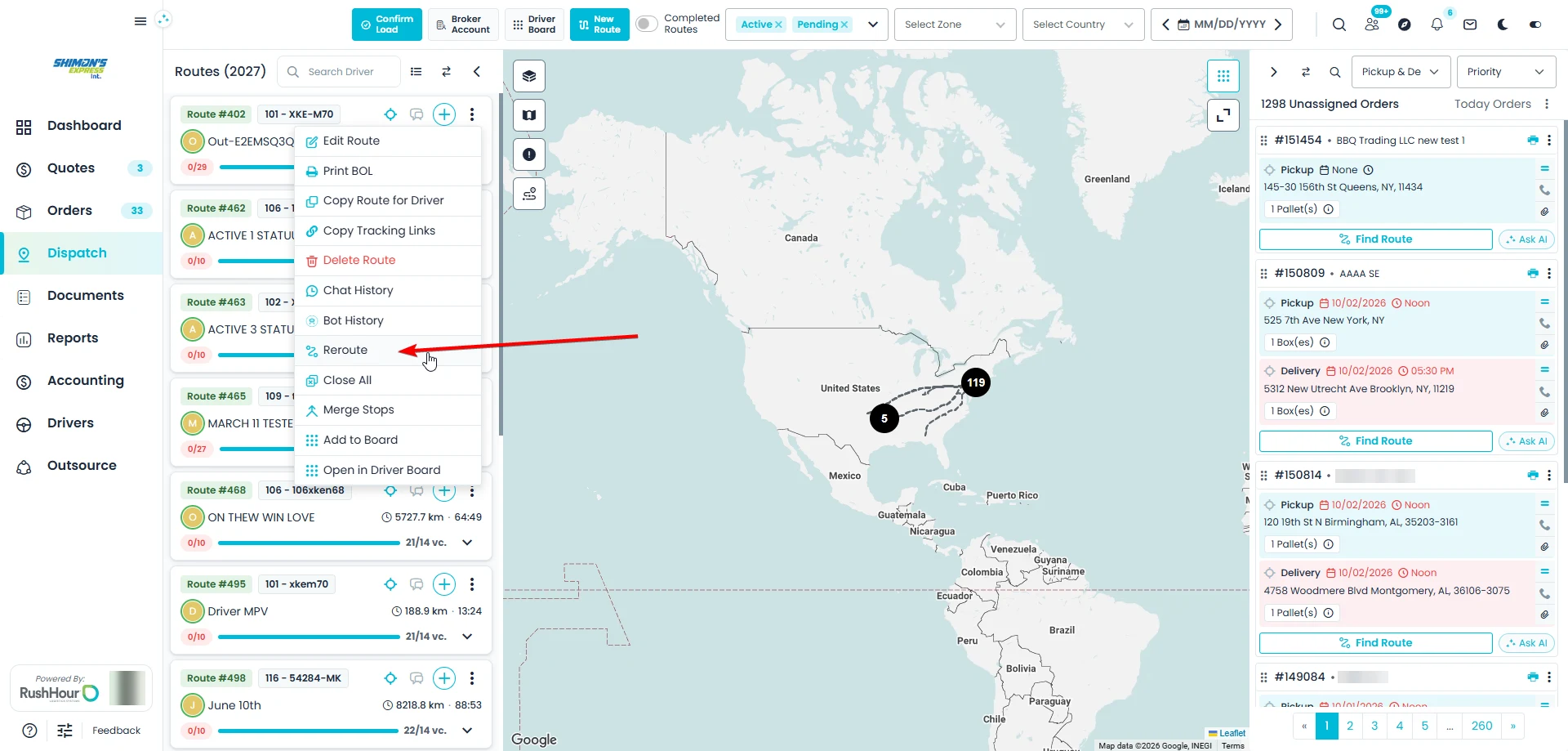
On the Dispatch board, open the route card's ⋮ menu and choose Reroute. Only open stops are re-ordered; stops that are already done keep their place.
Step 2: Check issues
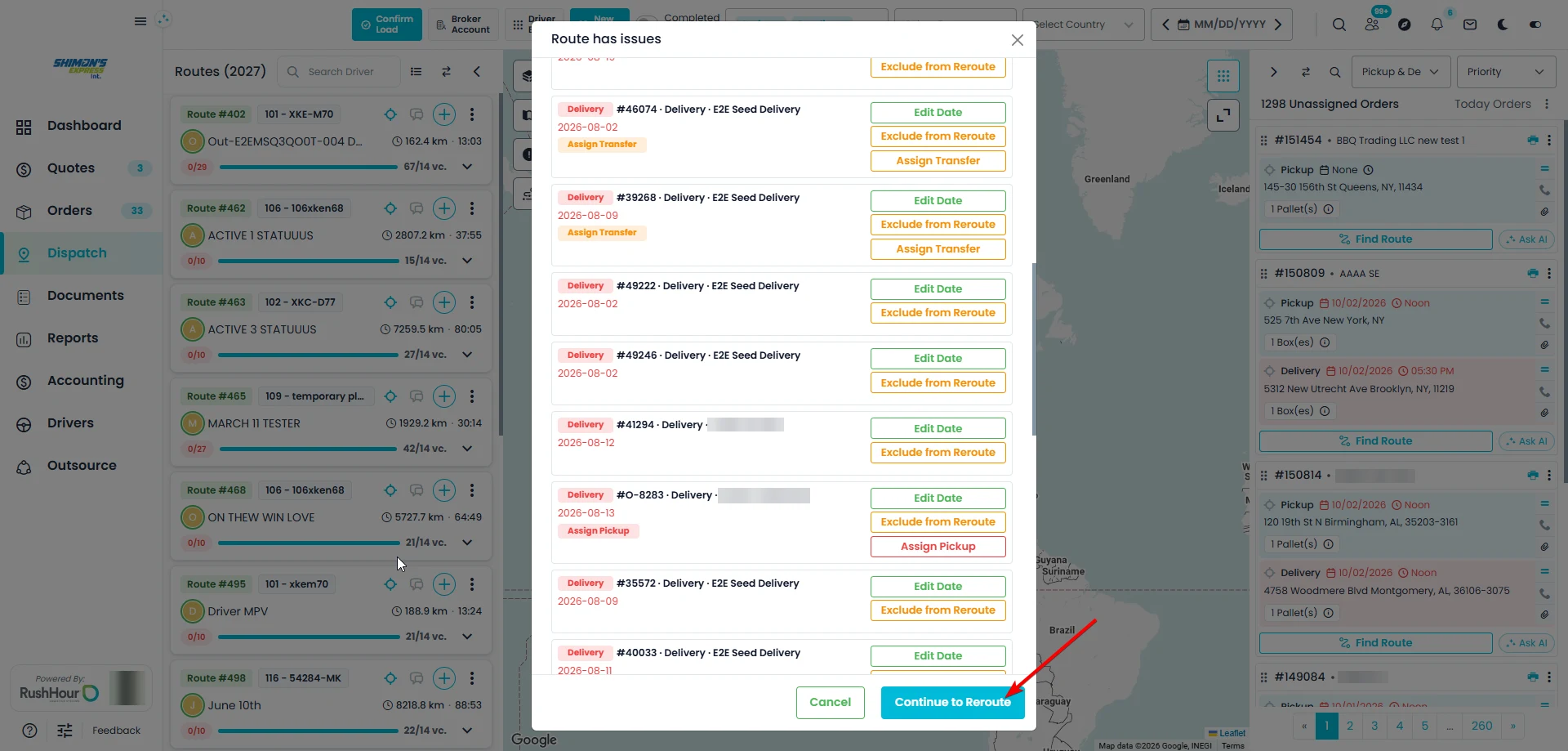
If the route has problems, Route has issues opens first. If there are none, you go straight to the options. The window lists two kinds of stops:
- Past-date stops: open stops scheduled before today. Select Edit Date to reschedule one, or Exclude from Reroute to keep it where it is. Select Include in Reroute if you change your mind.
- Stops with unresolved issues: for example, a delivery whose pickup isn't assigned yet, a missing delivery, a transfer that's still needed, or items that still need to be allocated. Each stop has a button that takes you to the fix: Assign Pickup, Assign Delivery, Create Delivery, Assign Transfer or Allocate Items.
Fix what you need to, then select Continue to Reroute, or select Cancel to stop.
Late stops will be optimized together with today's stops instead of oldest day first, and the window will say so.
Step 3: Choose the options
In Auto Reroute Options, Optimize with AI is already selected.
- Under Automatic mode optimization, choose:
- Optimize by distance (the default): the next stop is always the nearest one that can sensibly come next.
- Optimize by priority: higher-priority stops come first. Stops with the same priority are ordered by distance.
- Under Select the next stop (optional), pick the stop to start from, or leave it empty and the AI chooses. The list offers stops from the route's first day: pickups, and deliveries whose pickup is already done.
- Select Auto Reroute.
When the truck is linked to Samsara, the AI starts from the truck's current location. Without a live truck position, the AI picks the opening stop itself, unless you picked one.
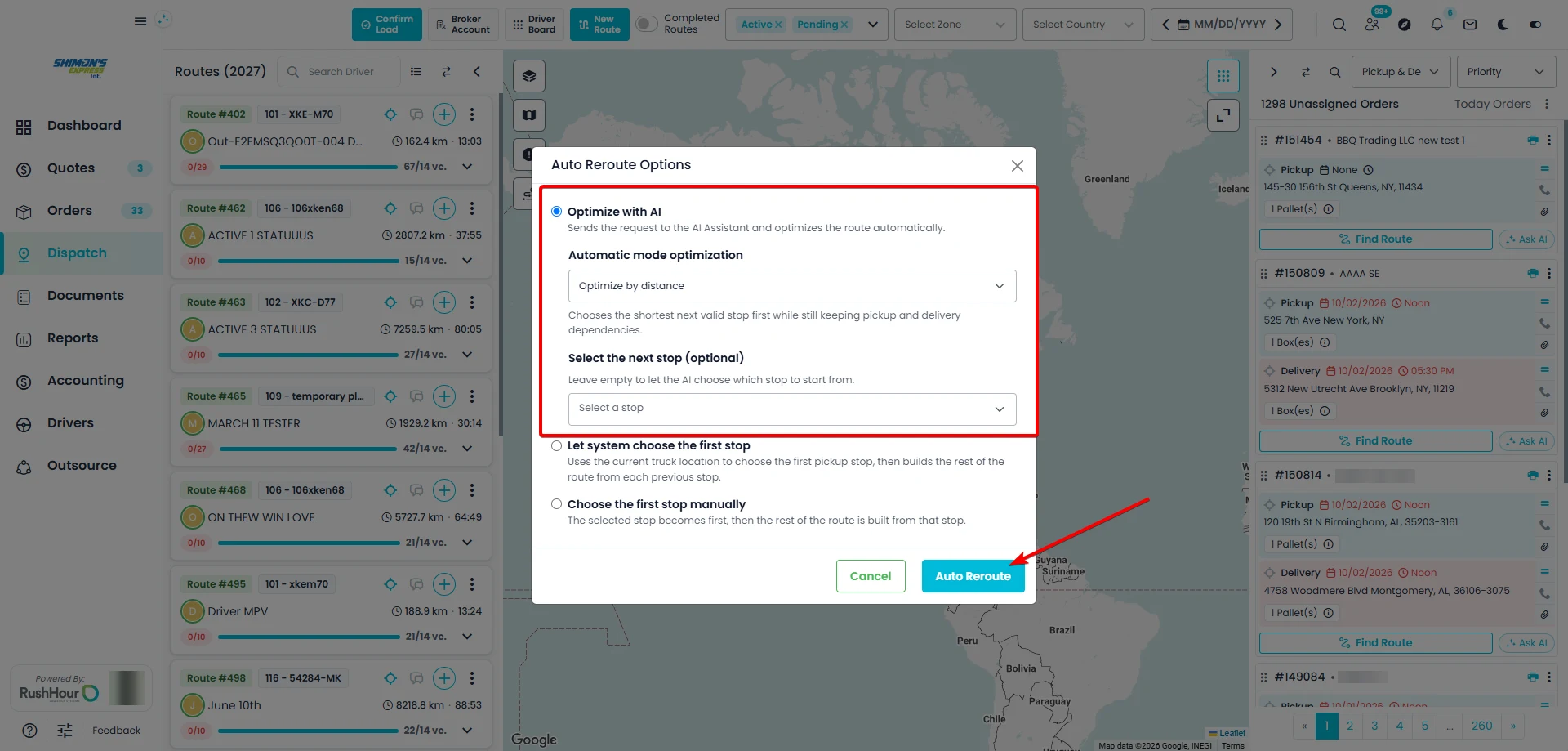
The other two choices in the window, Let system choose the first stop and Choose the first stop manually, don't use AI. See Ways to build the order.
Step 4: The AI re-orders the route
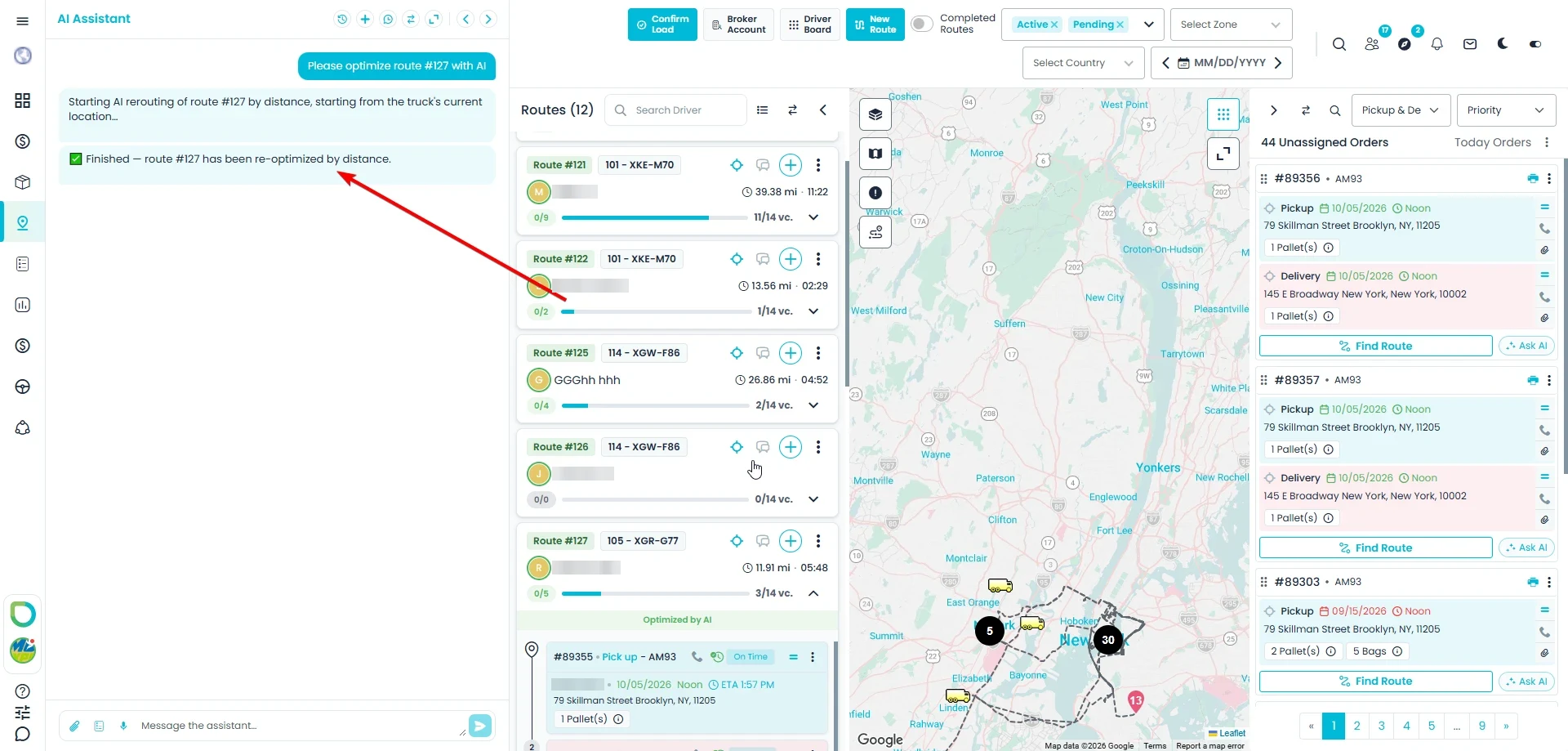
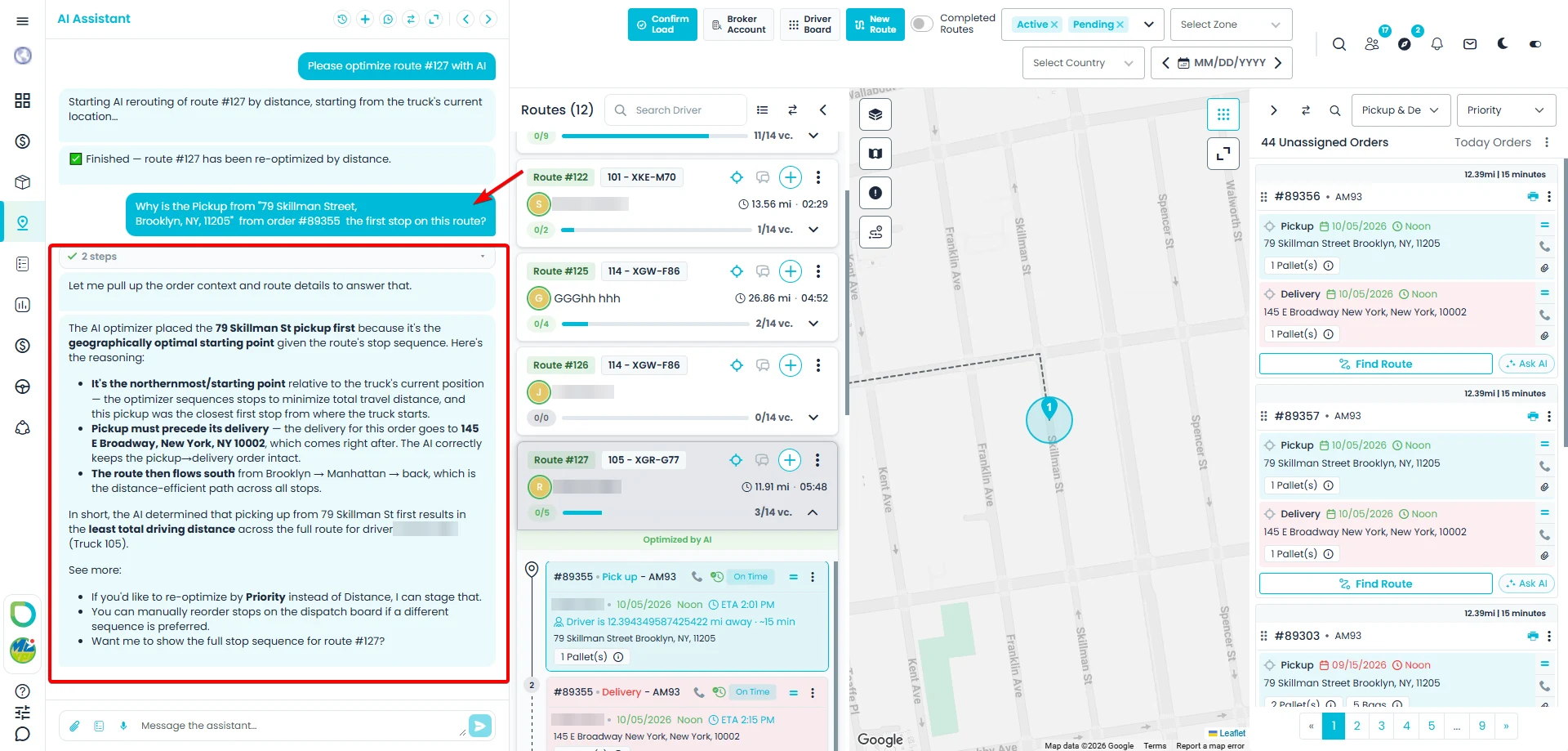
The AI assistant opens with your request, Please optimize route #… with AI. The assistant says it has started and repeats the options you chose, for example by distance, starting from the truck's current location. That message mentions the truck's location even when the truck has none; in that case the AI picks the starting stop.
The AI orders the stops by these rules:
- A pickup always comes before its delivery.
- Stops stay in their day group: earlier days first, then each later day in date order.
- Shortest distance first, or highest priority first, depending on the option you chose. Distances are measured in a straight line between stops.
- It tries to reach each stop before its scheduled time.
- When an order's delivery is within about 10 km of its pickup, it prefers to do that delivery right after the pickup.
When it's done, the assistant confirms, for example Finished — route #127 has been re-optimized by distance, and the route refreshes on the board in its new order.
Step 5: Checks before saving
RushHour checks the AI's result before saving it: every open stop must appear exactly once, and every pickup must come before its delivery. If something is wrong, or the AI isn't available at that moment, the route is left unchanged and the assistant tells you why. You can try again, or use Let system choose the first stop with Optimize by distance or Optimize by priority, which don't depend on the AI.
AI rerouting works for routes with up to 60 open stops. A bigger route is left unchanged and the assistant says so; the other reroute options work on routes of any size.
There's no Undo for a reroute you run from the route menu. To change the order afterwards, drag stops by hand or run Reroute again.
Ask about the result
You can keep asking in the same chat, for example: "Why is the pickup from [address] on order #[number] the first stop on this route?" The assistant looks up the order and the route and explains. Its answer is based on the finished route's stops, dates and distances; it isn't a record of how the AI worked out the order.
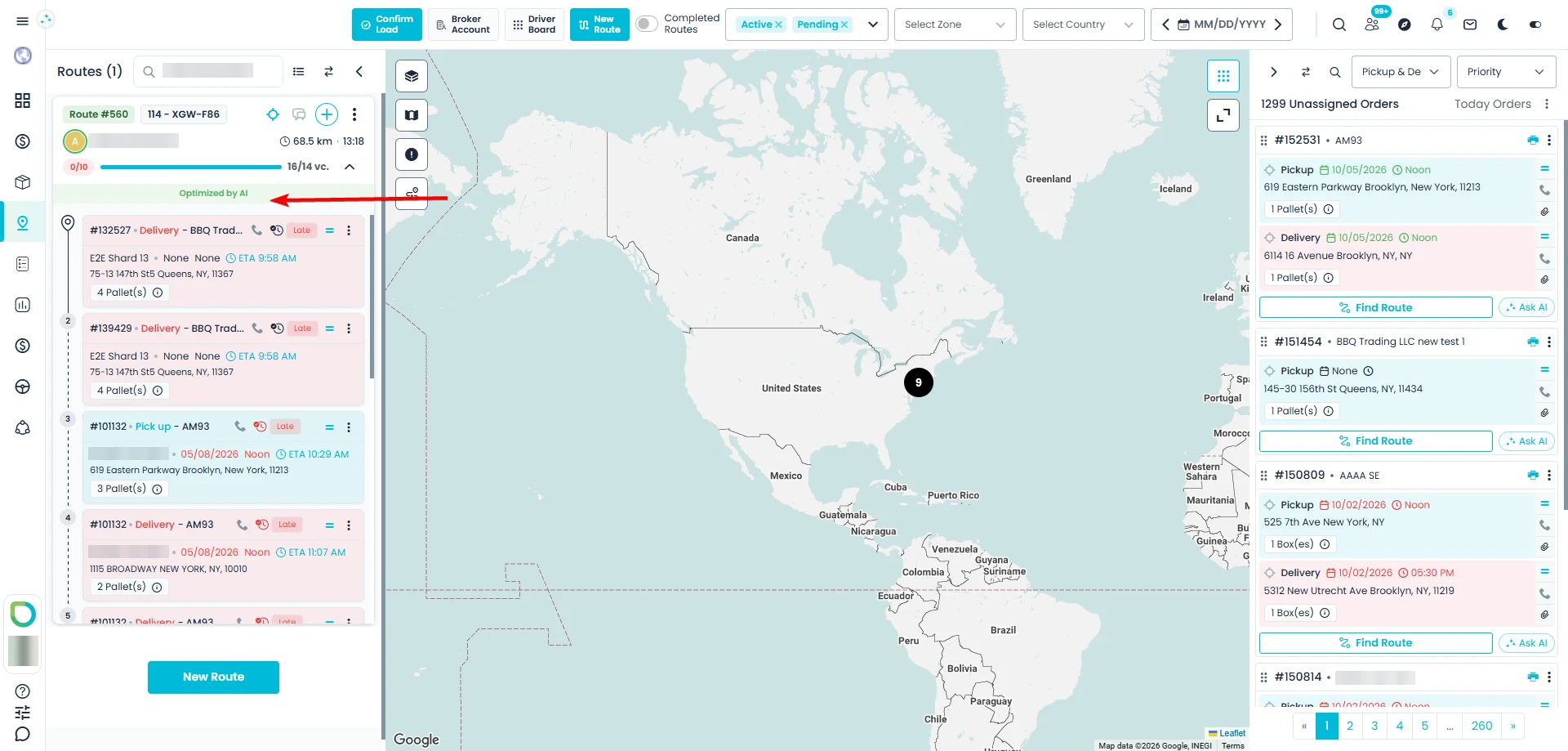
The "Optimized by AI" label
After the AI reroutes a route, the expanded route card shows Optimized by AI. The label stays while the driver completes stops.
If someone changes the route by hand — adds or removes a stop, moves a stop, or changes a stop's date, time, priority or address — the label disappears. That way you know the route can use another reroute.
The "later day" divider
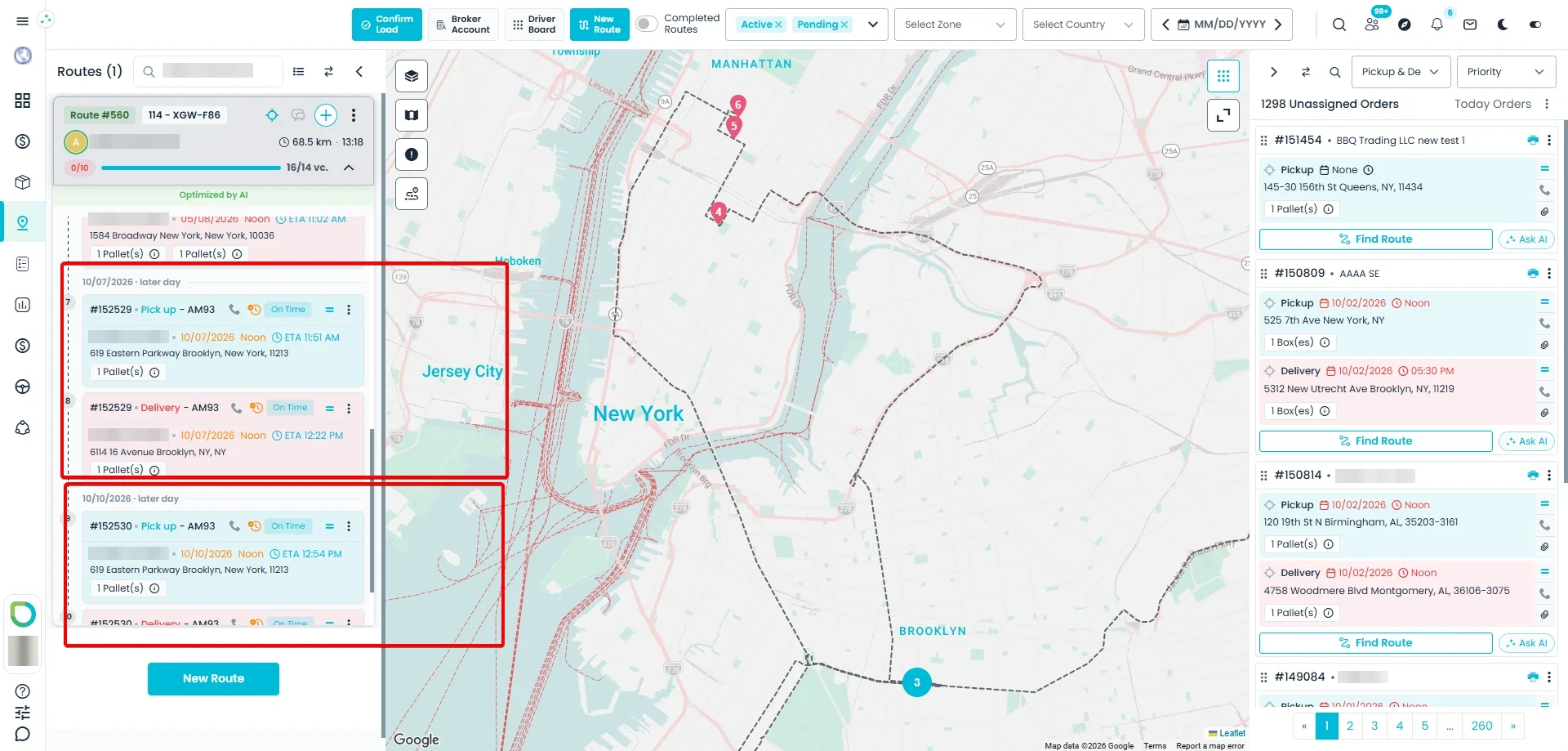
When a route has stops for a later day, they'll appear after today's stops, under a small divider with the date and later day. That makes it clear why they aren't visited before the other stops: they're for a later day. Hover the divider to see how stops are grouped. Dates never change when a route is optimized; use Edit Date to reschedule a stop.
Ask AI for an unassigned order
Ask AI is finished and will be available in the next release. This section describes how it will work.
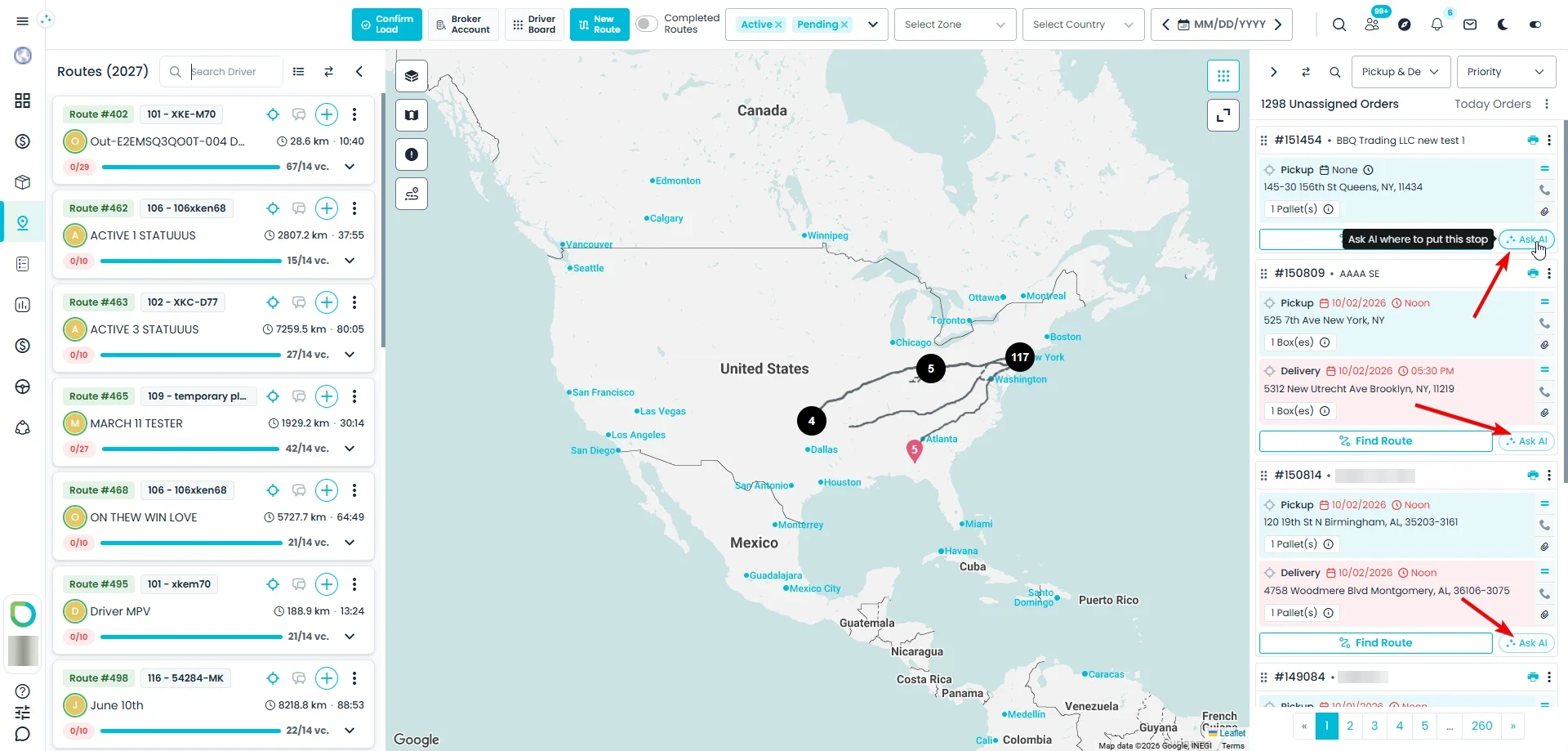
Each order card in the Unassigned Orders panel gets an Ask AI button next to Find Route, the new name of the Auto Reroute button. Hover it to see Ask AI where to put this stop. In the classic board's list view, Ask AI is in the card's ⋮ menu.
What the AI looks at
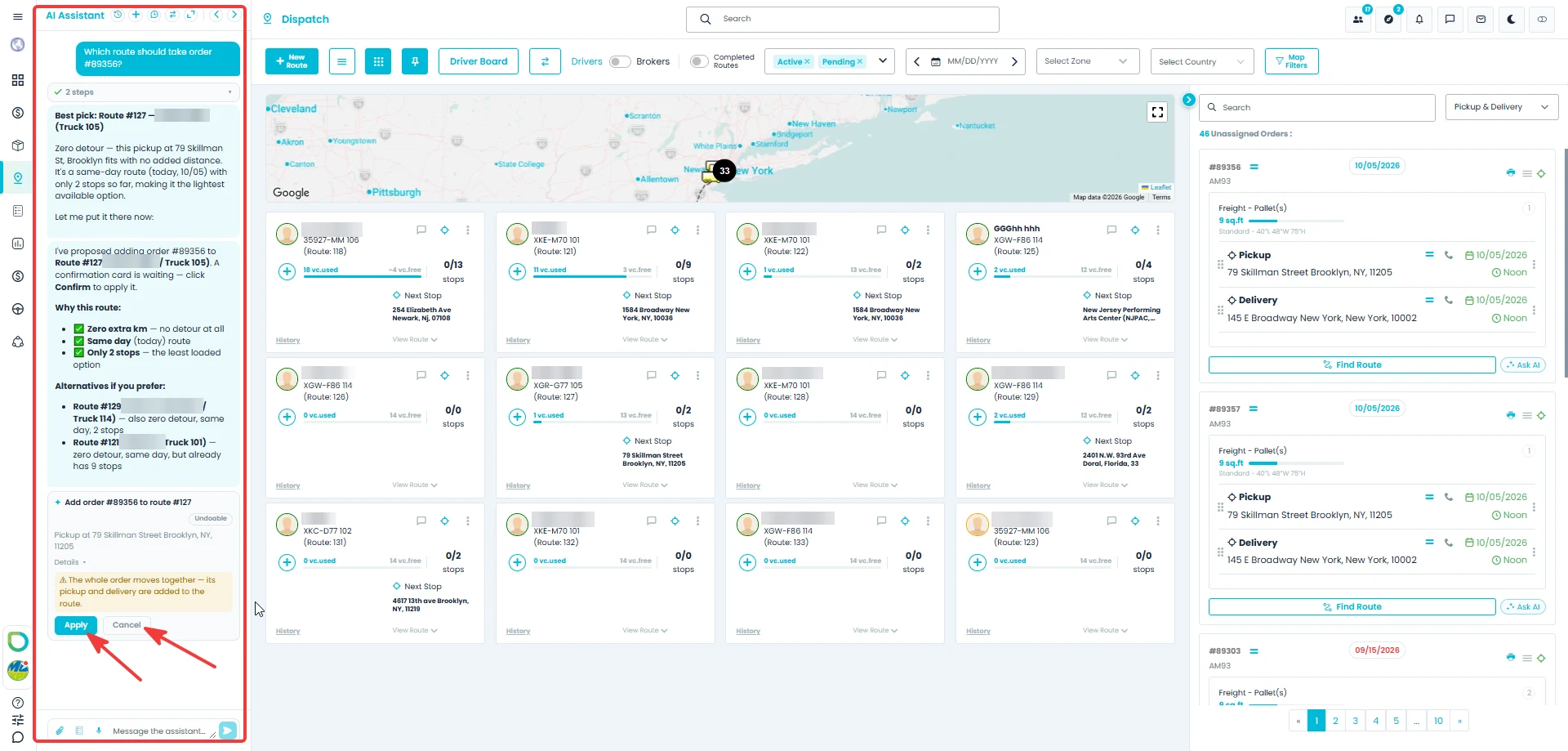
Select Ask AI and the AI assistant opens with the question Which route should take order #…? It suggests the best route, with the route number and driver, explains why in plain words, and mentions one or two other options. It looks at:
- How many extra kilometers the stop adds to the route, at the best place to insert it.
- Whether the route already works on the stop's day. Late stops count as today.
- Whether the route already has the pickup for the same order, so one truck can do both.
- The stop's priority.
- How many stops the route already has.
- For routes with no stops on that day: how far their truck is from the stop. When the truck's position isn't known, how close the route works to the stop on other days, then whether it works in the same country. These routes are suggested last.
Distances are straight-line estimates. The assistant lists the strongest options, up to 15. A route that already has this order's pickup is always included, so now and then you may see a few more.
Routes that can't take the stop aren't suggested:
- The truck doesn't have room for the order's pallets.
- The route has reached your Max Route Addresses limit. See Maximum stops per route.
- The route has no stops or truck position to measure from, and it works in another country.
If the order is too big for any single route, Ask AI is turned off and its tooltip says why: the order has more stops than your route limit, or it needs more pallets than one truck can carry. If no route can take the order right now, the assistant tells you why, for example how many routes are full and how many are at their stop limit.
Apply the suggestion
Nothing changes until you confirm. The assistant shows the proposed assignment on a card, such as Add order #… to route #…, with Apply and Cancel.
- Select Apply to add the order. Its pickup and delivery are added to the route together, at the suggested spot, and the route's other stops don't move.
- Select Cancel to leave everything as it is.
Right after you apply, the card offers Undo if the order had no stops on that route before. Undo isn't available once the route is completed or one of the added stops is done, and it expires with the card after about 15 minutes.
Ask follow-up questions
You can keep the conversation going, for example:
- "Why is this the best match?"
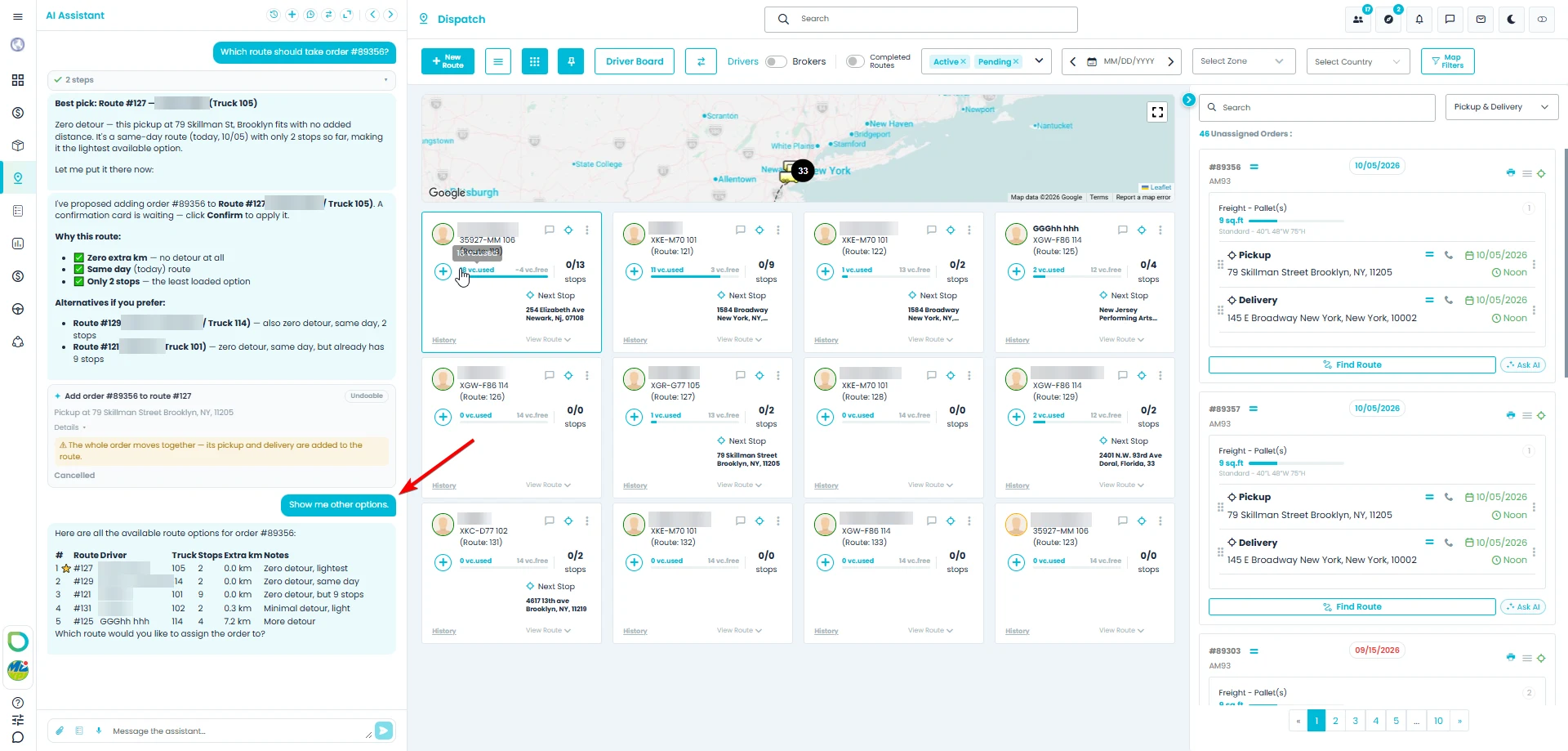
- "Show me other options." The assistant lists the other routes that can take the order, with a short note on how well each one fits.
- Ask it to re-optimize the whole route after the stop is added. The assistant shows a confirmation card first and offers Undo afterwards, as described in Actions and confirmations. This re-orders the route by distance or priority without AI, so the route doesn't get the Optimized by AI label.
Related
- Optimize a route: every way to reorder a route's stops, with or without AI.
- Assign stops to routes: drag and drop, and route suggestions with Auto Reroute.
- The AI assistant: what else the assistant can do.